You're probably dealing with this already. A client site throws a plugin vulnerability alert, another store is two PHP versions behind, and a third site has a plugin nobody remembers approving. The hard part isn't getting alerts. It's deciding which site needs attention first, which issue can wait until the maintenance window, and which finding needs action today.
That's the job a WordPress plugin vulnerability scanner has to support. Not just detection, but useful action. Coverage matters. So does intelligence freshness, scan depth, alert quality, portfolio support, server impact, mitigation options, and clear boundaries around what the tool fixes versus what your team still has to do.
The risk pressure is real. Patchstack reported 11,334 new WordPress ecosystem vulnerabilities in 2025, with 91% in plugins and 4,124 serious enough to require rapid mitigation rules. That's why “scan and forget” doesn't hold up anymore, especially when you're managing risks in software projects across many sites with different owners, update policies, and revenue exposure.
Some tools below are best at scanning inside WordPress. Others are better as hosted security platforms, vulnerability intelligence feeds, or APIs for custom workflows. WP Triage stands out when the central problem is ordering work across sites. Other tools are stronger when you need blocking, malware cleanup, centralized security operations, or your own integrations.
Table of Contents
- 1. WP Triage
- 2. Wordfence
- 3. Patchstack
- 4. Jetpack Protect and Jetpack Scan add-on
- 5. WPScan
- 6. Solid Security
- 7. Defender
- 8. Sucuri Security
- 9. MalCare
- 10. MainWP Vulnerability Checker
- Top 10 WordPress Plugin Vulnerability Scanners Comparison
- Turn Scanner Alerts Into a Fix Sequence
1. WP Triage
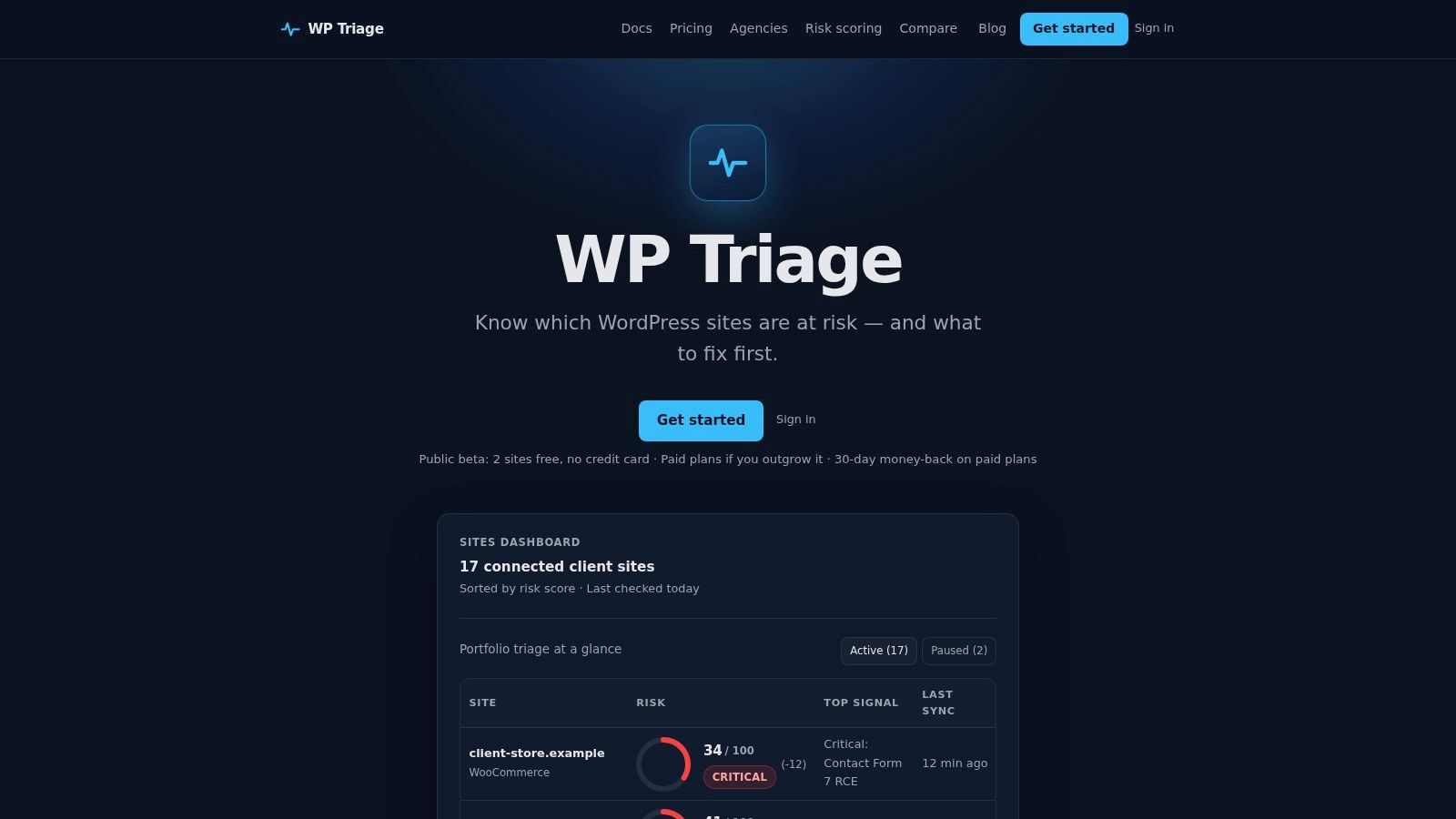
An agency with 20 client sites usually does not struggle to find issues. It struggles to decide whether the urgent job is the outdated checkout plugin on a high-revenue store, the abandoned theme on a brochure site, or the site still running an old PHP version. WP Triage is built for that sorting step.
Its role is narrow by design. It inventories WordPress core, plugin, theme, and PHP versions across connected sites, matches those versions against known vulnerabilities, and assigns a risk score with a ranked fix sequence. For teams already using backups, update workflows, and separate security controls, that is often more useful than another long list of alerts.
Best fit for portfolio triage
WP Triage makes the most sense for operators managing multiple sites with uneven risk and limited maintenance time. The dashboard groups sites into Safe, At Risk, and Critical, then shows which issues are driving that status. At the site level, the score is paired with a short list of the fixes most likely to reduce risk first.
That changes the workflow. Instead of reviewing each site from scratch, a maintenance team can start with the highest-risk site, confirm whether a safe update path exists, and work through a repeatable queue. Detection still needs follow-through. After an alert, the job is to verify exploitability in that environment, check for update compatibility, schedule the fix, and document any exceptions where a patch has to wait.
Practical rule: If weekly review time disappears into priority debates, add a triage layer before adding another scanner.
Setup is simple. Install the agent plugin, add the key, and the site starts reporting for daily scoring. The public beta includes a small free allowance, and paid plans scale for agencies that need broader coverage.
What it does not do
WP Triage does not block attacks, clean malware, or replace backups. That boundary matters. It helps teams separate three jobs that often get blurred together: detection, mitigation, and remediation.
Detection answers, "What is exposed right now?" Mitigation answers, "How do we reduce risk before a full fix is possible?" Remediation answers, "What change closes the issue safely?" WP Triage is strongest in the first category and in helping teams order the work that follows. If a site is already compromised, or if you need virtual patching while waiting on a vendor update, you will still need other tooling and an incident process.
Its published plans also top out below the very large fleet category, so enterprise portfolios may need a custom approach or a different management model.
To apply this in practice:
- Use it when priority is the main problem: It helps maintenance teams decide which site and which version issue to handle first.
- Use it when ownership is spread across roles: Clear site-level scoring makes handoffs easier between account managers, developers, and support staff.
- Do not use it as a standalone response tool: After a high-risk alert, confirm the affected component, test the update path, apply the fix, and use separate controls for containment or malware response.
2. Wordfence
A common agency problem looks like this: a client site throws a plugin vulnerability alert, another starts showing suspicious file changes, and nobody wants to log into ten separate wp-admin panels to sort signal from noise. Wordfence fits that operating model better than a scanner that only tells you a version is vulnerable.
Its value is the combination of detection and containment in one WordPress-native stack. It can alert on vulnerable plugins and themes, scan files for malware indicators, and apply firewall rules that reduce exposure while the team tests updates. That distinction matters. Detection tells you what may be wrong. The firewall helps lower immediate risk. Remediation still means updating, removing, or replacing the affected component safely.
Best fit for teams that want scanning plus active blocking
For a single site, Wordfence is often chosen because it covers several jobs without requiring a separate security console. For a small portfolio, the stronger operational feature is Wordfence Central, which gives administrators a shared place to review alerts and basic security status across sites. Its CLI support also helps technical teams fold scans and checks into existing maintenance workflows instead of treating each site as a manual review.
Wordfence is less useful if your only question is portfolio-wide vulnerability triage. Other tools are better at surfacing exposure across many sites with less overhead. Wordfence becomes more persuasive when the follow-up action includes blocking exploit attempts, investigating changed files, or checking whether a vulnerability alert lines up with signs of compromise.
The trade-off is host impact and cost control. Scheduled scans, logging, and firewall features can be heavy on smaller hosting plans. At agency scale, per-site licensing can force a real budgeting decision, especially when not every client needs the same response depth.
After a Wordfence alert, separate the cases first. A known vulnerable plugin version calls for patch validation and an update plan. A file-integrity or malware finding calls for incident review, credential checks, and cleanup steps before you trust the site again.
Use Wordfence when you need one tool to monitor vulnerable components, inspect for malware, and add a blocking layer while remediation is in progress.
3. Patchstack
Patchstack is strongest when plugin and theme vulnerability intelligence is the center of your workflow, not an extra feature bolted onto a broader security product.
Its value isn't just detection. It's the mitigation layer. Patchstack monitors installed software against its vulnerability intelligence and can deploy targeted virtual patching rules so you're not fully exposed while waiting for a vendor update.
Best fit for virtual patching and same-day response
That focus lines up with where WordPress risk sits. Patchstack's 2025 report found 7,966 new WordPress ecosystem vulnerabilities in 2024, about 22 per day, with 96% in plugins and only seven in WordPress core. For scanner buyers, that's a strong case for tools that understand installed extensions rather than treating WordPress core as the main story.
Patchstack is especially useful when you need to bridge the gap between disclosure and safe remediation. That's common on WooCommerce stores, custom client builds, and sites where plugin updates can break revenue paths or integrations. If you need a current view of what commonly shows up in plugin exposure, this WordPress plugin vulnerability list gives helpful context.
Operational note: A virtual patch buys time. It doesn't close the ticket. You still need to update, replace, or remove the affected plugin.
Portfolio dashboards, alerts, and API or CLI options make Patchstack workable for agencies and hosts. But it's not a malware cleanup service, and teams sometimes expect too much from the word “protection.” Its job is prevention-first mitigation around known vulnerabilities, not full incident remediation.
Choose Patchstack when exploit blocking between disclosure and update is the gap you need to close.
4. Jetpack Protect and Jetpack Scan add-on
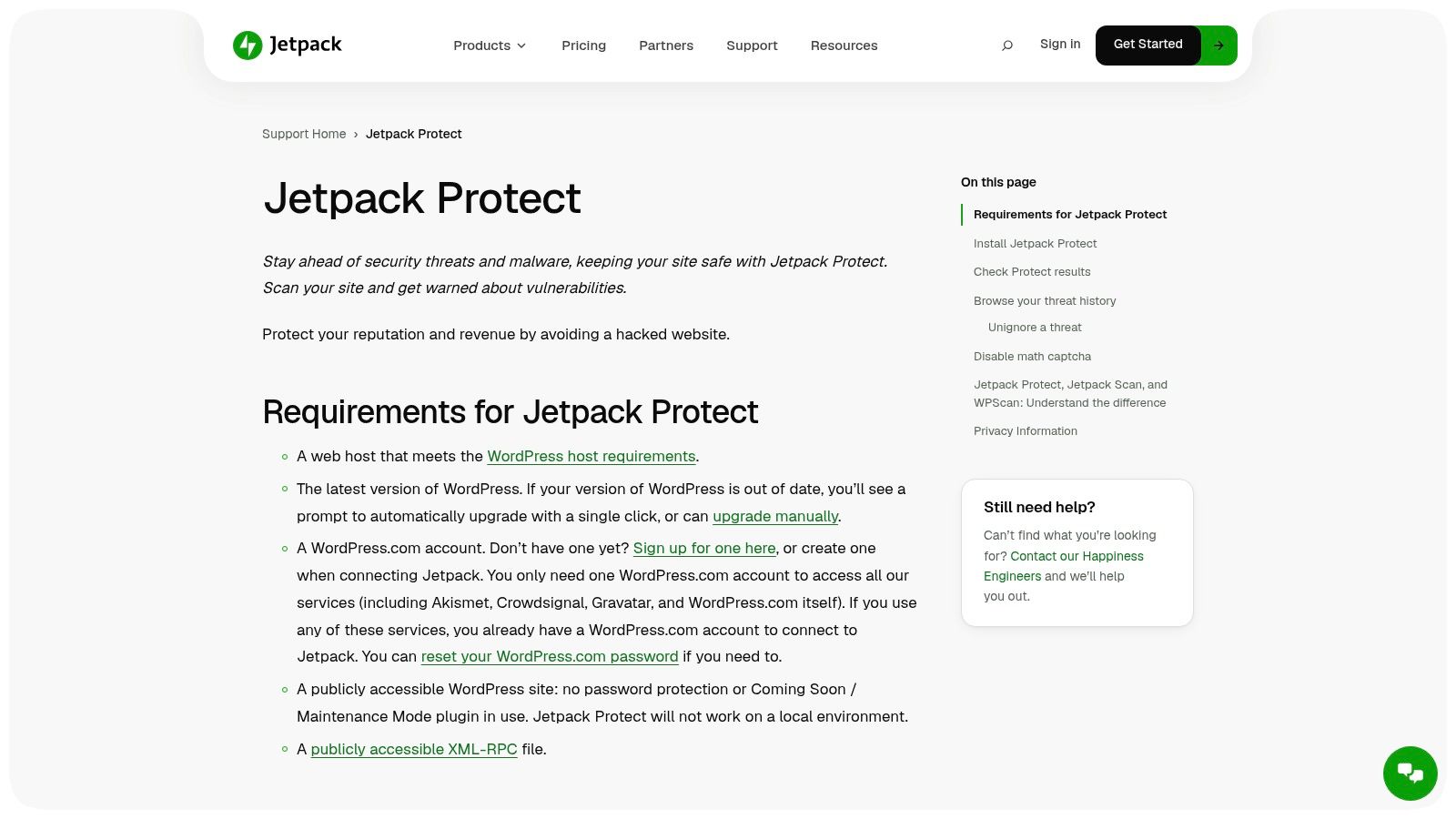
Jetpack Protect makes sense for operators who want a low-friction baseline first. If you already live in the Jetpack or WordPress.com ecosystem, it's one of the easiest ways to add daily plugin and theme vulnerability checks without redesigning your workflow.
The free Protect layer is narrow by design. It checks installed software against vulnerability intelligence and surfaces alerts in WP Admin. That's useful when you want visibility without immediately committing to a larger security stack.
Best fit for lightweight vulnerability awareness
Jetpack Scan is where the product becomes more operationally complete. That paid layer adds malware scanning, stronger WAF support, and one-click fixes, which shifts it from “know about exposure” to “help me deal with it.”
That upgrade path is the appeal. Teams can start with simple vulnerability awareness, then add cleanup and more active protection if they outgrow dashboard-only alerts.
A few trade-offs matter:
- Good for existing Jetpack users: Setup feels natural if your sites already connect to Jetpack services.
- Less ideal for alert-heavy teams: The free layer is better for periodic review than fast-moving incident handling.
- Better for straightforward portfolios: If you need deep portfolio triage logic, use a dedicated prioritization layer alongside it.
Jetpack also benefits from being part of a high-adoption group in WordPress security tooling, which helps with support familiarity and client comfort during handoffs. Still, if your team needs granular command-line control or custom data workflows, this isn't the first place I'd look.
Use Jetpack Protect when you want a simple daily vulnerability check with a built-in path toward malware scanning and automated fixes.
5. WPScan
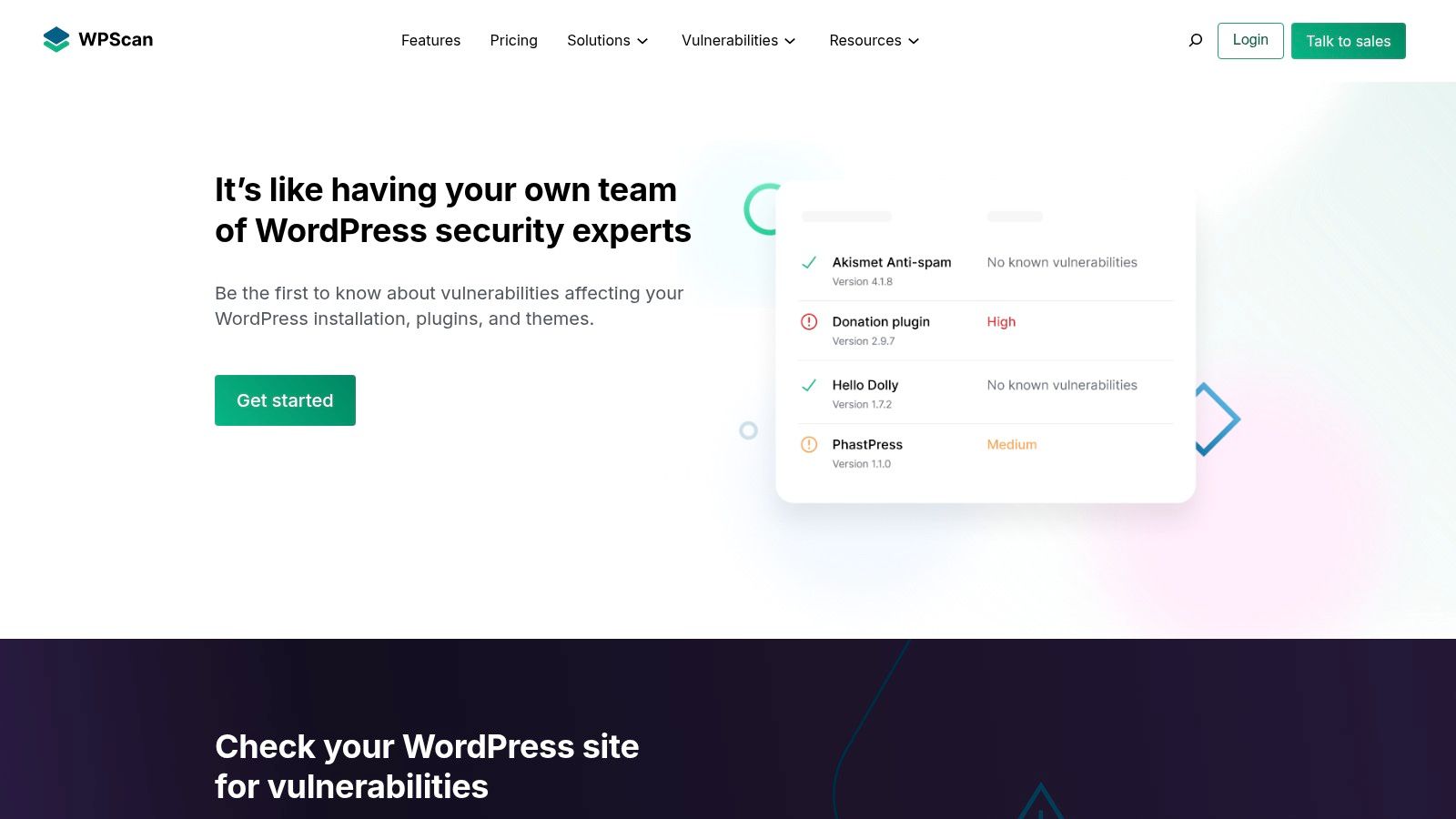
WPScan is less of a “plugin you install and forget” and more of a data and tooling layer for teams that want control. Its value sits in the vulnerability database, API access, and security testing workflows built around that intelligence.
That makes it a better fit for technical operators, hosts, internal platforms teams, and agencies building their own dashboards or automated checks.
Best fit for custom integrations
If you want to push WordPress vulnerability intelligence into a CI pipeline, an internal maintenance dashboard, or a portfolio script, WPScan is one of the most practical options. The CLI is useful for security testing, and the database has been a long-standing source across the WordPress security ecosystem.
There's also a strong reason many integrators prioritize plugin-level checks. Independent empirical work created the WISP-1108 benchmark with 1,108 disclosed-and-patched vulnerabilities across 854 unique plugins, plus held-out validation sets for scanner evaluation. That kind of benchmark matters because scanner quality isn't just about recognizing a slug. It's about accurate detection and, in some workflows, knowing exactly what changed.
If you're evaluating whether your team needs a data source or a turnkey scanner, this guide to a plugin security scanner is a useful framing device.
WPScan's downside is straightforward. It isn't the easiest path for non-technical users, and commercial API use may require paid access or custom licensing. If your maintenance team wants plain-English fix queues inside WordPress, this won't feel as accessible as a managed plugin or hosted dashboard.
Use WPScan when vulnerability intelligence needs to feed your own systems, not just a plugin UI.
6. Solid Security
A common WordPress maintenance problem looks like this: the team wants one plugin that improves login security, flags known vulnerable components, and buys time when patching cannot happen the same day. Solid Security fits that operating model better than tools built mainly for portfolio reporting or custom data workflows.
Its value is less about raw detection breadth and more about consolidation. Solid Security combines authentication controls, hardening tasks, and vulnerability awareness in the same admin experience. For a single business site or a small set of internally managed sites, that reduces tool sprawl and makes follow-up work more likely to happen.
The practical draw is Solid Security Pro, which adds scanner coverage and Patchstack-powered virtual patching. That matters for teams that need to reduce exposure while they test updates against custom themes, WooCommerce extensions, or client-specific workflows. Virtual patching is mitigation, not remediation. The plugin still needs to be updated, replaced, or removed once you confirm the issue and assess compatibility risk.
Solid Security is less convincing in two cases. First, if malware cleanup and incident response are your main concern, this is not the product I would put at the center of the process. Second, if you run a large client portfolio and need a stronger cross-site triage queue, there are better fits elsewhere in this list.
A useful way to operate it is straightforward:
- Use alerts to start validation: Check the installed plugin or theme version and confirm whether the finding applies to that asset on that site.
- Use virtual patching to buy time: Keep it in place while staging and testing the fix.
- Separate hardening from vulnerability closure: 2FA, passkeys, lockouts, and brute-force protection reduce exposure, but they do not remove the vulnerable code.
- Set a remediation deadline: Temporary shielding helps only if someone owns the update or replacement decision.
Solid Security makes the most sense for teams that want one security plugin to handle access controls, baseline hardening, and known-vulnerability mitigation inside WordPress.
7. Defender
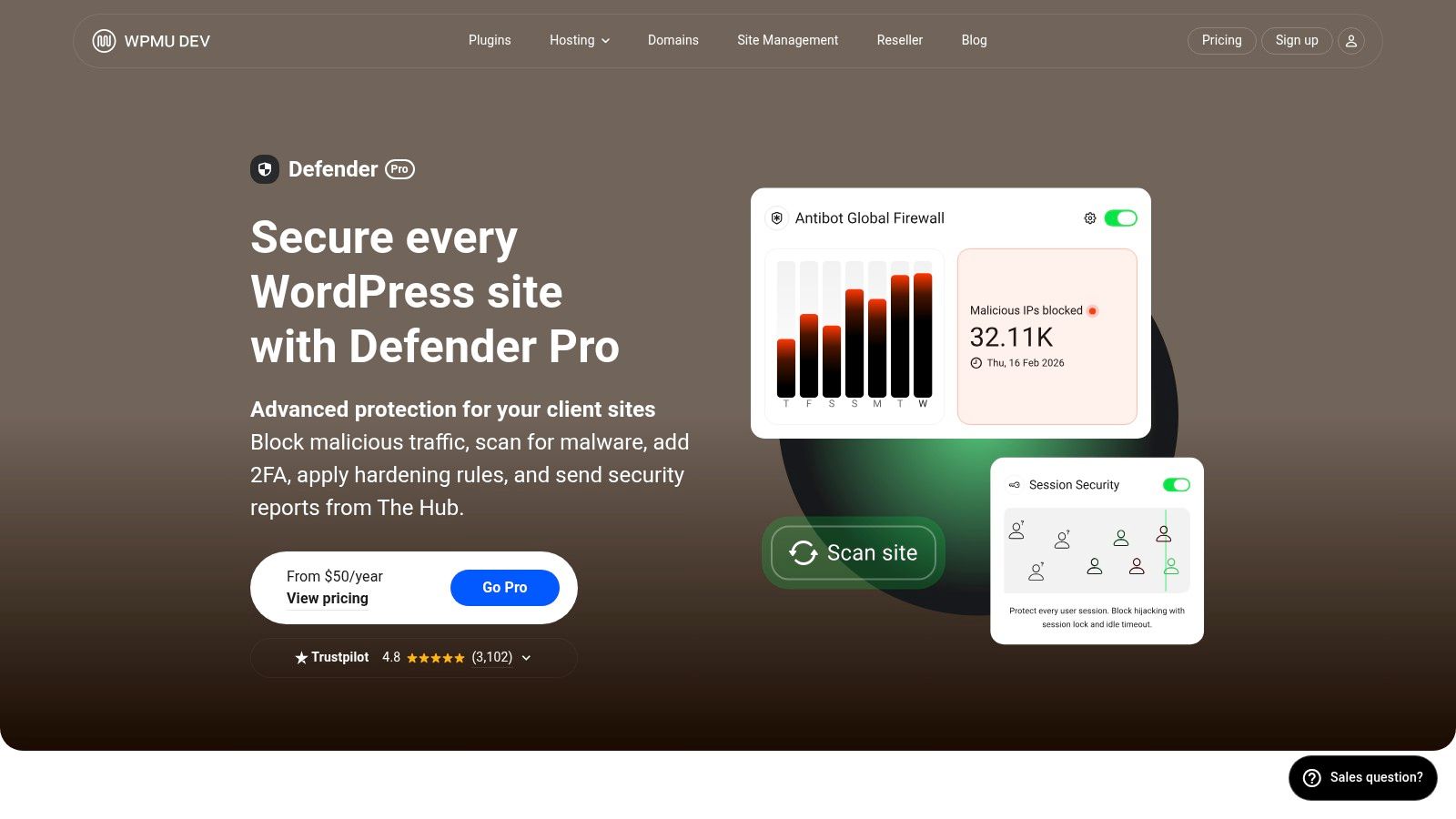
Defender fits best inside the WPMU DEV world. If your agency already uses WPMU DEV hosting, The Hub, or its site management products, Defender becomes more attractive because it plugs into a broader operating environment instead of standing alone.
On the security side, it combines vulnerability checks, malware and integrity scanning, file change monitoring, hardening, audit logs, and login protection.
Best fit for one-vendor agency operations
The Hub is what changes Defender from “another plugin” into a practical portfolio option. Centralized reporting and multi-site administration matter when the same team also manages uptime, backups, performance, and client maintenance from one vendor console.
That convenience is real. So is the trade-off. If you only need a WordPress plugin vulnerability scanner and nothing else, the WPMU DEV bundle can feel broader than necessary.
Consolidated management is useful only if your team actually works from that console every day. If they don't, the extra features become shelfware.
Defender also sits in a category where some teams expect too much overlap between vulnerability detection and malware cleanup. It can help surface suspicious conditions and known issues, but your incident process still needs a separate containment and recovery path if a site is already compromised.
Use Defender when you want vulnerability visibility inside a larger agency management stack and prefer fewer vendors.
8. Sucuri Security
A familiar agency problem looks like this. A client site throws signs of compromise, the plugin inventory is outdated, and the team needs more than a list of vulnerable versions. It needs containment, investigation, and cleanup support in the same workflow.
Sucuri fits that operating model better than tools focused only on plugin intelligence. The free WordPress plugin handles audit logs, file integrity monitoring, some hardening steps, and remote malware scanning. The paid Website Security Platform adds the edge controls that change the response path, including a WAF, CDN, continuous monitoring, and access to remediation help.
That distinction matters. Detection tells you what may be wrong. Mitigation reduces exposure while you work. Remediation deals with an already affected site.
Sucuri is strongest when the action after an alert matters as much as the alert itself. If a vulnerable plugin is disclosed, the plugin alone will not give you the same operational cover as putting the site behind Sucuri's platform and using its response services when needed. Teams with limited in-house incident capacity usually feel that difference first.
It also suits portfolios that are not purely WordPress. Agencies supporting Shopify, Laravel, custom PHP, and WordPress often prefer one incident-response vendor at the perimeter instead of separate app-specific products for each stack.
The trade-off is setup and cost. You are not just installing a scanner. You are deciding whether to route traffic through an external security layer, manage DNS changes, and pay for a service that becomes more valuable during a real incident than during a quiet month.
Use Sucuri if your workflow needs three things together: edge-layer protection, malware investigation, and a clear cleanup path after a site has already gone wrong.
9. MalCare
A common WordPress ops problem looks like this. The site is already resource-constrained, the host complains about heavy scans, and the team still needs vulnerability visibility plus a cleanup path if malware is found.
MalCare is one of the cleaner fits for that situation because its malware scanning runs off-site. That changes the operational trade-off. You get less load on the origin server, which matters on shared hosting, busy publishing sites, and WooCommerce stores where background security jobs can create performance tickets.
Its value is not just "it scans." MalCare combines plugin, theme, and core vulnerability checks with remote malware scanning, cleanup, a firewall layer, and vulnerability shielding for cases where patching cannot happen immediately. That makes it more useful for teams handling live-site risk under change-control constraints, especially if a store cannot take an update in the middle of a sales window.
The important distinction is what happens after an alert.
If MalCare flags a vulnerable plugin version, treat that as triage input. Check whether the plugin has a safe update, whether the issue is present on the site, and whether the shielding feature meaningfully reduces exposure while you schedule the fix. Shielding buys time. It does not replace patching.
If MalCare finds malware, the workflow changes. Cleanup becomes the first task, then password resets, user review, file validation, and a second scan to confirm the site is clean. Teams that skip those follow-up steps often close the alert without closing the incident.
MalCare fits operators who want one product to cover two adjacent jobs: vulnerability awareness and malware response with low server impact. Its limits are also clear. Some of the stronger response features require a paid plan, and a plugin-level security layer does not replace controls at the server, hosting, or edge level.
Use MalCare if your team needs low-overhead scanning and a faster path from detection to cleanup, particularly on sites where on-box security jobs cause more operational friction than the team can tolerate.
10. MainWP Vulnerability Checker
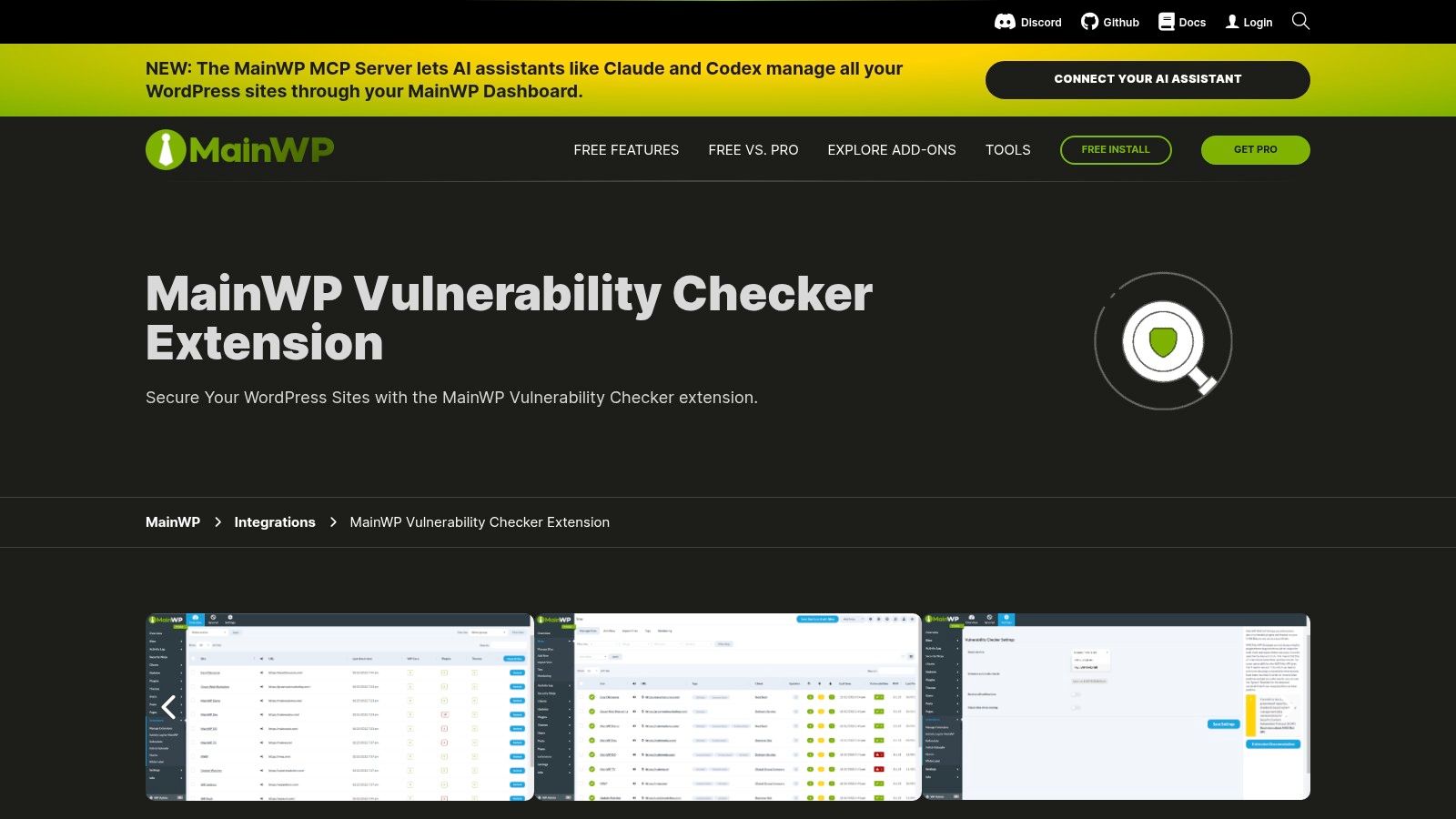
MainWP Vulnerability Checker is easiest to recommend to one specific audience. Teams that already run MainWP as their central maintenance dashboard.
If that's your operating model, adding portfolio-wide vulnerability visibility through an extension is a natural move. You stay in the console where updates, reports, and routine maintenance already happen.
Best fit for MainWP-centered maintenance
The extension checks connected child sites for vulnerable plugins and themes and can use either MainWP's NVD-backed API or the WPScan API. That gives you some flexibility around cost, data preferences, and setup.
This works best for maintenance-first agencies. If your process already runs through MainWP, the extension turns vulnerability checking into another management signal rather than another separate login. If you want a broader view of what these tools usually cover, this overview of a WordPress vulnerability scanner is a useful companion.
There is one operational caveat that matters more than the feature list. Your results depend on the quality and freshness of the data source you choose, and your team still needs a clear triage method after the alert lands.
Patch speed is also getting less forgiving. Patchstack-derived reporting summarized by SWIF AI says the median time to mass exploitation for the most targeted WordPress flaws is about 5 hours, with roughly half of high-impact flaws exploited within 24 hours. That's a reminder that centralized visibility only helps if your escalation rules are already defined.
MainWP Vulnerability Checker is a strong fit when your maintenance operation already revolves around MainWP and you want vulnerability checks in the same workflow.
Top 10 WordPress Plugin Vulnerability Scanners Comparison
| Product | Core features | UX / Quality (★) | Value & Pricing (💰) | Target audience (👥) | Unique selling points (✨) |
|---|---|---|---|---|---|
| WP Triage 🏆 | Portfolio heatmap; daily snapshots; CVE matching; 0–100 risk score + ranked top‑3 fixes | ★★★★☆, transparent scoring; low‑noise alerts | 💰 2 sites free; Starter $9/mo, Pro $29, Agency $49; 30‑day guarantee | 👥 Agencies, freelancers, WooCommerce teams | ✨ Ranked triage & action order; portfolio‑first visibility; fast agent onboarding |
| Wordfence | Malware/vuln scanner; real‑time firewall; Central multi‑site; CLI | ★★★★☆, mature threat intel; can be resource‑heavy | 💰 Free + Premium per site; costs scale with portfolio | 👥 Broad WP sites; agencies using Central | ✨ Real‑time firewall & signatures; large install base |
| Patchstack | CVE detection for plugins/themes; virtual patching; API & dashboards | ★★★★☆, proactive plugin CVE mitigation | 💰 Paid tiers; enterprise/add‑ons for large portfolios | 👥 Teams prioritizing plugin/theme CVEs; agencies | ✨ Automatic virtual patches (RapidMitigate); strong CVE focus |
| Jetpack Protect (± Scan) | Daily plugin/theme checks; Scan adds malware scanning, WAF, auto‑fixes | ★★★☆☆, simple baseline alerts; easy setup | 💰 Protect free; paid Scan adds automated fixes & malware | 👥 Jetpack users; small to mid sites | ✨ Seamless Jetpack integration; WPScan‑powered vulnerability data |
| WPScan | Comprehensive WP vuln DB; API & daily dumps; CLI scanner | ★★★★☆, authoritative vulnerability data | 💰 DB free; commercial API may require paid plan | 👥 Integrators, security teams, hosts | ✨ De facto WP vuln database; API/dumps for custom integrations |
| Solid Security (SolidWP) | Hardening checks; vuln scanner; 2FA/passkeys; Patchstack virtual patching (Pro) | ★★★★☆, combines hardening with vuln detection | 💰 Free & Pro; some features Pro‑locked | 👥 Sites wanting hardening + vuln awareness | ✨ Hardening + modern auth controls + virtual patching |
| Defender (WPMU DEV) | Vulnerability & malware scans; file‑change monitoring; Hub reporting | ★★★☆☆, integrated ecosystem experience | 💰 Tied to WPMU DEV membership / bundle pricing | 👥 Agencies using WPMU DEV stack | ✨ Centralized Hub management & reporting |
| Sucuri Security | Integrity & remote scans; hardening; WAF/CDN; incident response & cleanup | ★★★★☆, strong remediation & SLAs | 💰 Free plugin; paid Website Security Platform for WAF/cleanup | 👥 Sites needing remediation, enterprises, mixed CMS portfolios | ✨ Full cleanup & incident response SLAs; WAF + CDN |
| MalCare | Off‑site malware scanning; one‑click cleanup; vuln scanner; Vulnerability Shield | ★★★★☆, lightweight remote scanning; fast cleanup | 💰 Paid plans; remote scan reduces host load | 👥 Sites wanting off‑site scanning + easy cleanup | ✨ Off‑site scanning + one‑click cleanup + virtual shielding |
| MainWP Vulnerability Checker | Portfolio vuln checks for child sites; supports NVD or WPScan API; MainWP integration | ★★★☆☆, useful for MainWP users; data source dependent | 💰 Free extension; WPScan API optional paid | 👥 MainWP users managing many sites | ✨ Free portfolio visibility inside MainWP; flexible data source choice |
Turn Scanner Alerts Into a Fix Sequence
A WordPress plugin vulnerability scanner tells you something is wrong. It doesn't automatically tell you what matters most, who owns the fix, or whether the safest response is update, remove, replace, isolate, or temporarily shield.
That distinction matters because detection, decision, and remediation are different jobs. Detection is matching installed software or site state against known risk signals. Decision is ordering the work. Remediation is the actual update, rollback, plugin replacement, malware cleanup, or firewall change. Teams get into trouble when they buy a scanner and assume they've also solved prioritization and response.
Start with validation. Confirm the affected plugin or theme is installed on the site in question, verify the version, and check whether the issue is present on production, staging, or both. Then look at the surrounding context: whether a patch is available, whether the plugin is business-critical, whether the site is revenue-generating, and whether you have a temporary mitigation option such as virtual patching, WAF rules, or access restrictions.
After that, use your normal maintenance path. Test updates where you can. Apply the fix through the same release process your team trusts for plugin changes. Re-scan or re-check the inventory after the change to confirm the vulnerable version is gone, then document anything you had to defer. If a plugin can't be updated safely, that exception should have an owner, a reason, and a review date.
For agencies and multi-site operators, the winning setup is usually a combination rather than a single product. Use a scanner, vulnerability database, or hosted security platform to surface exposure. Pair it with portfolio-level prioritization, consistent ownership, escalation rules, and reporting that lets everyone see what changed and what still needs action.
Different tools serve different operational needs:
- Choose intelligence-first tools when you need accurate vulnerability data for custom workflows.
- Choose in-plugin scanners when you want direct visibility inside WordPress.
- Choose virtual patching platforms when update delays are unavoidable.
- Choose malware-focused platforms when cleanup and incident response matter.
- Choose centralized management options when the team already works from one console.
- Choose a triage layer when the biggest problem is sequencing work across many sites.
No single resource covers all of that well. The best choice depends on whether your immediate gap is intelligence, scanning, mitigation, cleanup, centralized operations, or ranked action order. Once you know which problem you're trying to solve, the shortlist gets much clearer.
If your team already has alerts but still struggles to decide what to fix first, WP Triage is built for that exact gap. It monitors WordPress versions, plugins, themes, and PHP across your sites, matches known vulnerabilities, and turns the noise into a ranked fix sequence so you can act in the right order.