You're in the WordPress media library, the editor is waiting for a large upload to finish, and the progress bar suddenly stops. Instead of a useful explanation, the browser returns 413 Request Entity Too Large, or perhaps the newer wording, 413 Content Too Large. The instinct is to edit wp-config.php, increase a PHP value, or add a rule to .htaccess.
That often isn't where the request failed.
In production WordPress stacks, the request may pass through a browser, CDN, WAF, load balancer, reverse proxy, web server, PHP runtime, and WordPress before the application can process it. The first layer with a lower request-body limit rejects the upload, so changing WordPress settings alone can leave the error untouched. This guide works from the outside in, ranking the fixes by the layer most likely to be responsible.
Table of Contents
- The 413 Request Entity Too Large Error in Practice
- What Triggers 413 Across HTTP Versions
- Fixing 413 in Nginx and Reverse Proxies
- Adjusting Apache and PHP Server Limits
- WordPress and WooCommerce Specific Settings
- Load Balancer and WAF Limits That Silently Block Uploads
- Portfolio Triage Checklist for Agencies
The 413 Request Entity Too Large Error in Practice
An editor uploads a large hero video to a WooCommerce shop. The media uploader freezes, the browser displays a generic error page, and WordPress gives no useful clue about whether the problem is the file, PHP, Nginx, or the hosting platform.
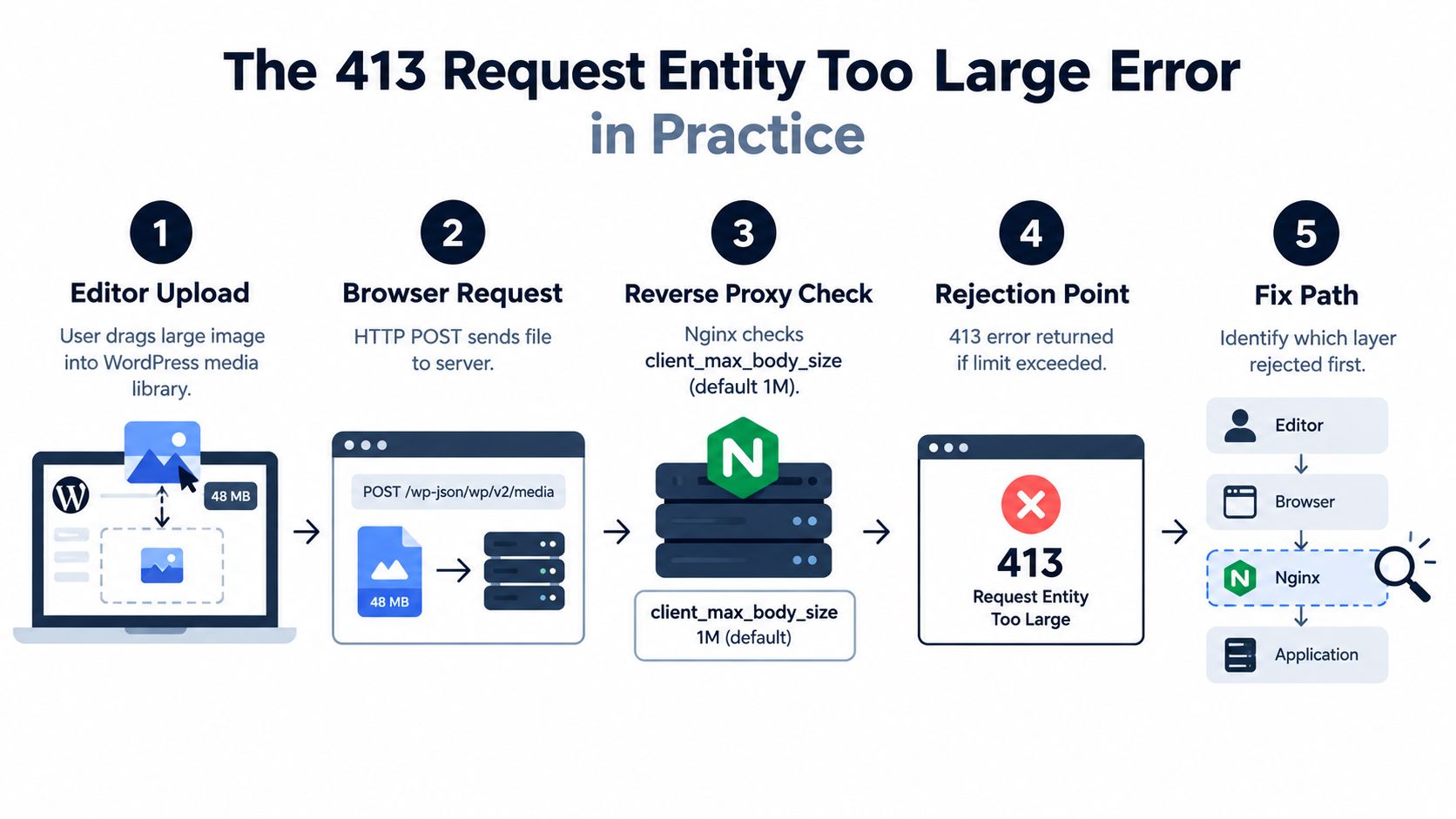
The request usually travels through several gates:
- WordPress media uploader, which creates the multipart POST request.
- PHP, where
upload_max_filesizeandpost_max_sizecan restrict processing. - Nginx, which may reject the body through
client_max_body_size. - A load balancer or reverse proxy, which can apply its own request policy.
- The origin application, where WordPress, WooCommerce, or an integration finally handles the data.
The response comes from whichever component refuses the request first. That's why a PHP change won't help when Nginx closes the connection before PHP receives the body. Independent hosting guidance also identifies the web server, reverse proxy, and application as separate possible sources of the condition, particularly in WordPress stacks where a host default can override application settings (layer-by-layer 413 troubleshooting).
The first rejection matters more than the visible label
The phrase Request Entity Too Large is familiar, but it's an older label for the same HTTP status. The status code has retained its meaning across HTTP versions: the server refuses a request because its content exceeds what it's willing or able to process (MDN's 413 reference).
Before increasing any limit, reduce the payload where practical. Image resizing, video transcoding, document cleanup, and other file size reduction techniques can remove the need for a broad server-side change. A smaller request also lowers processing pressure and keeps the site's upload policy closer to its intended boundary.
What Triggers 413 Across HTTP Versions
A 413 response applies to the request body, not just a file. A media upload is the obvious example, but a large form submission, bulk product import, JSON webhook, or REST request can trigger the same status when the receiving layer refuses the body.
The wording changed over time. RFC 2068 introduced the phrase Request Entity Too Large, RFC 7231 renamed it Payload Too Large, and RFC 9110 updated it again to Content Too Large. The underlying condition didn't change, and older vendor documentation still uses the legacy wording, which is why searches for “413 request entity too large” continue to find relevant guidance (HTTP 413 background).
| Request Type | Example | Typical Layer That Returns 413 | Limit Directive |
|---|---|---|---|
| File upload | WordPress media, a theme archive, or a plugin package | Reverse proxy, Nginx, Apache, PHP, or the edge service | client_max_body_size, LimitRequestBody, upload_max_filesize |
| Form submission | A page-builder save or checkout form with many fields | Web server, PHP runtime, or framework parser | post_max_size, input and multipart limits |
| API payload | Product import, CRM webhook, or JSON REST request | Proxy, WAF, application server, or framework | Proxy body policy or application request-body settings |
413 isn't the same as a timeout
A slow upload can fail for different reasons. 413 means the server rejected the content size, while a timeout means the connection took too long or stopped progressing. The two can appear together operationally, especially when a large body is sent over a slow connection, but changing timeouts won't make a request acceptable to a strict size limit.
The server may terminate the request, close the connection when the protocol doesn't permit early termination, or send a Retry-After header when the condition is temporary. Those behaviours are described in the HTTP status documentation, but they don't identify which hop rejected the body. For that, you need response headers, logs, and a test that bypasses or isolates each layer.
Fixing 413 in Nginx and Reverse Proxies
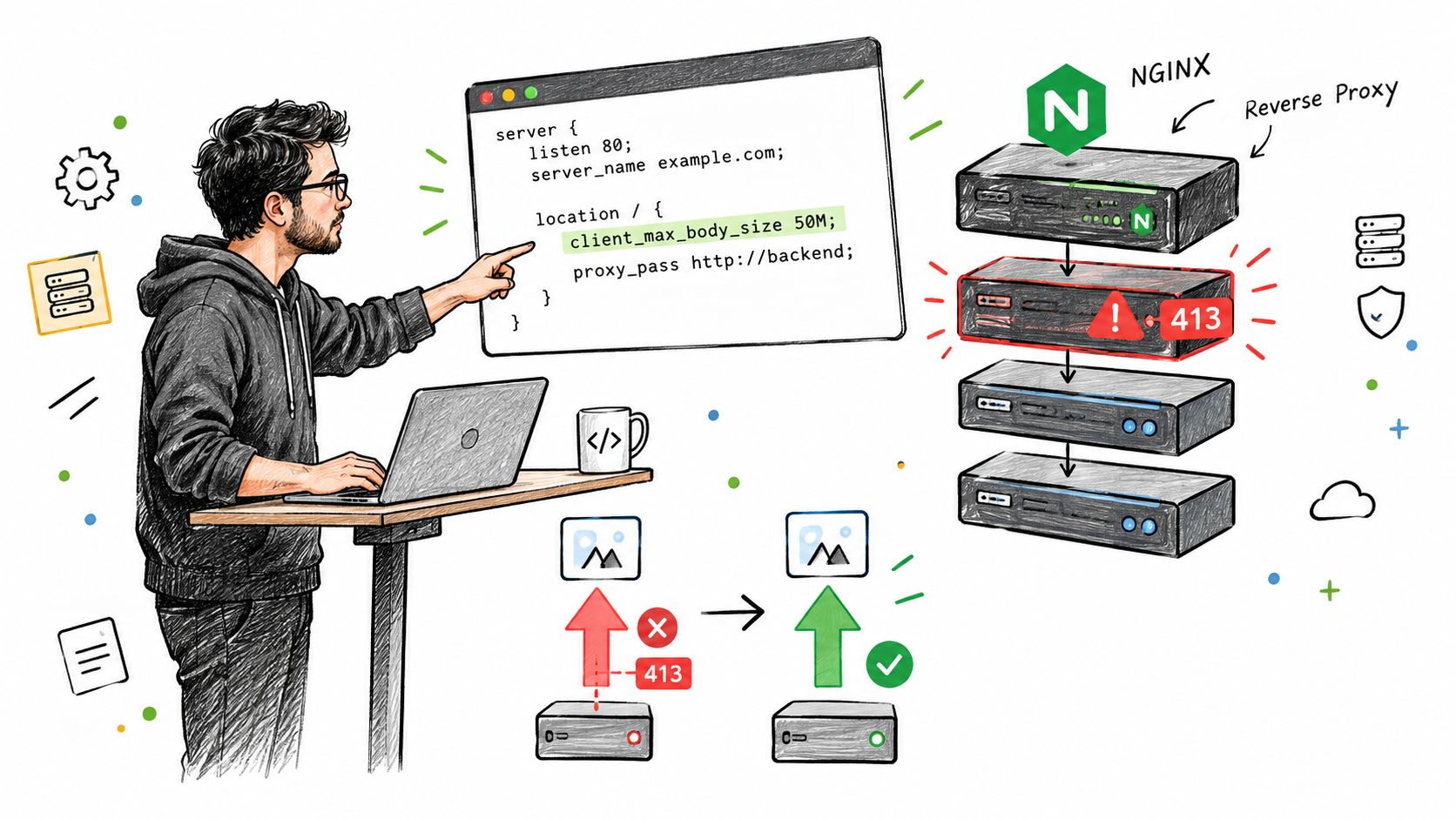
Nginx is the first place I check on a production WordPress stack. Its client_max_body_size directive controls the request body it accepts, and the documented default is 1M (Nginx 413 configuration context). If Nginx rejects the request, PHP and WordPress never receive it, so changing wp-config.php cannot solve that failure.
Start with the narrowest scope that supports the workflow. A site-specific server block limits the change more safely than a global increase:
server {
    server_name example.test;

    client_max_body_size 100m;

    location / {
        proxy_pass
        proxy_http_version 1.1;
        proxy_request_buffering off;
        proxy_read_timeout 300s;
    }
}
The directive is valid in the http, server, or location context. A location value overrides the broader setting, so a correct server-level change can still lose to a stricter rule on the upload path.
Make the upload path reliable
proxy_request_buffering off streams the request toward the upstream instead of waiting to buffer the full body. It can improve handling for large uploads, but it does not replace an appropriate body-size limit. proxy_read_timeout controls how long Nginx waits for the upstream response, while proxy_http_version 1.1 supports common persistent proxy connections.
Test and reload safely:
sudo nginx -t
sudo nginx -T
sudo systemctl reload nginx
Use nginx -T to inspect the merged configuration that is active. Then filter the error log while reproducing the upload failure. A staged file and curl -v can show whether the response headers identify Nginx, an edge service, or another intermediary.
A CDN may reject the body before it reaches the origin. Cloudflare documents a 100 MB upload cap on its Free plan, with higher limits on some other plans, so check the edge policy before changing Nginx (Cloudflare upload limits).
Practical rule: Set the smallest limit that supports the workflow. Verify the active configuration and identify the response source before changing WordPress settings.
Adjusting Apache and PHP Server Limits
Once the proxy accepts the body, Apache can become the next gatekeeper. Its LimitRequestBody directive controls the request size Apache will accept, and it can be placed in the main configuration, a virtual host, or .htaccess, depending on the server's permissions and override policy.
A virtual host rule might look like this:
<VirtualHost *:443>
    ServerName example.test
    LimitRequestBody 209715200
</VirtualHost>
For a per-site directory rule, use the equivalent byte value in .htaccess:
LimitRequestBody 209715200
The .htaccess approach only works when the Apache configuration permits the directive through AllowOverride. If the file appears to have no effect, check the virtual host configuration before changing the value again. WordPress administrators who regularly maintain rewrite rules can use this WordPress .htaccess configuration guide to avoid mixing request-size rules with unrelated rewrite directives.
PHP has separate ceilings
Apache accepting the request doesn't mean PHP can process it. Check these values in php.ini, or use .user.ini on hosts that provide per-directory PHP overrides:
upload_max_filesize = 100M
post_max_size = 110M
memory_limit = 256M
max_input_time = 300
max_execution_time = 300
upload_max_filesize limits an individual uploaded file. post_max_size limits the complete POST body, including multipart overhead and other submitted fields, so it should be larger than the file limit. memory_limit affects the application's ability to process the request, while max_input_time and max_execution_time matter when a legitimate upload or import takes a long time.
These settings don't repair an upstream rejection. If Nginx or a reverse proxy returns 413 first, PHP may never log the request as an upload. That's why the order matters: confirm the front door, then Apache, then PHP, and only afterward inspect WordPress.
A correct PHP configuration can still appear broken when the web server refuses the request before PHP starts.
After editing php.ini, reload the relevant PHP service or restart the PHP handler according to the hosting environment. On managed hosting, ask the provider to confirm which PHP configuration the active pool uses. A command-line php --ini result may describe the CLI runtime, not the PHP-FPM process serving WordPress.
WordPress and WooCommerce Specific Settings
WordPress usually reports the smallest effective limit from the layers beneath it. The value shown in the Media Library is useful, but it's a diagnostic clue, not proof that the server will accept a larger request.
Multisite introduces an additional network-level control. In wp-config.php, a network administrator can set network_max_upload_size to govern the permitted upload size across the network. A site-specific filter can also modify the value WordPress exposes:
add_filter('upload_size_limit', function ($size) {
    return 100 * 1024 * 1024;
});
That changes the WordPress-side limit. It cannot override Nginx, Apache, PHP, a reverse proxy, or an edge service. If the WordPress dashboard shows a generous allowance but uploads still produce 413, investigate the request path rather than adding more application code.
Shared hosting needs a different workflow
Many client sites run on cPanel or Plesk without root access. In cPanel, use the MultiPHP INI Editor to review upload_max_filesize, post_max_size, and the relevant execution settings. Plesk exposes comparable PHP configuration controls at the domain or service level.
WooCommerce creates several non-media triggers:
- Product CSV imports can exceed request limits through a large multipart upload or a heavy processing request.
- Theme and plugin uploads can fail when an archive is larger than the server policy.
- Page-builder saves can produce large POST bodies because the request contains structured layout data.
- Checkout custom fields and integrations can create payloads that exceed a form or API limit without involving a file.
For agencies, use this order:
- Identify the response owner, starting with the CDN, WAF, load balancer, or Nginx front end.
- Confirm Apache and PHP values, including the relationship between file and total POST limits.
- Check WordPress multisite or WooCommerce behaviour only after infrastructure accepts the request.
- Use a plugin limiter as a convenience, not as a server fix.
Plugins such as upload-limit adjusters can make the WordPress interface display a higher value, but they can't raise a hosting provider's ceiling. A broader WooCommerce security review also helps separate upload configuration from unrelated store exposure, which is covered in this WooCommerce security guide.
Load Balancer and WAF Limits That Silently Block Uploads
The hardest 413 cases are often the ones where the origin is configured correctly. An edge service receives the request first, rejects it, and returns a response that looks like an application failure. The origin access log stays empty because the request never arrived.
Cloudflare is a common example. Its plan-based body limits can block a request before it reaches Nginx, and the relevant ceiling depends on the account and endpoint. Don't infer the active policy from a WordPress setting. Check the edge documentation and compare the response headers with a direct origin test.
AWS Application Load Balancer requires careful interpretation. AWS documents generated 413 responses for Lambda targets when the request body exceeds 1 MB, while requests routed to instance targets can have a different failure source. Idle timeout settings affect slow transfers, but they don't replace body-size diagnostics. Listener rules and target type matter, so inspect the ALB response and target logs together.
HAProxy adds another configuration layer. tune.http.maxrequest concerns request buffering and headers, while body inspection requires an appropriate request-processing path. A configuration that captures or inspects request bodies can impose constraints separate from the origin's upload directive.
| Platform | Default Cap | Max Configurable | Where to Change |
|---|---|---|---|
| Cloudflare | Plan-dependent | Plan and endpoint-dependent | Cloudflare dashboard and account plan |
| AWS ALB | Target and request type dependent | Service and target constraints | Load balancer attributes, listeners, and target configuration |
| HAProxy | Configuration-dependent | Configuration and available memory | HAProxy global and frontend settings |
| WAF layer | Provider and rule dependent | Provider and rule dependent | WAF policy, inspection settings, and exclusions |
Treat Fastly, Akamai, Sucuri, and comparable services as independent request gates. Their body-size and inspection policies must be checked separately from the web server. If your infrastructure spans Azure, a resource such as this overview of East Midlands Azure load balancing can help clarify how traffic distribution fits into the broader path, but the active service configuration remains the authority.
Prove which hop rejected the request
Run curl -v against the public endpoint and then, where permitted, against the origin endpoint. Compare status headers, server identifiers, request timing, and logs at each hop. A public 413 with no corresponding origin request strongly indicates an edge rejection.
Use the same disciplined approach for access problems. A blocked request may look like an upload failure when a WAF rule or access policy is responsible, so this website access troubleshooting guide is useful when the response mixes status codes or security headers.
Portfolio Triage Checklist for Agencies
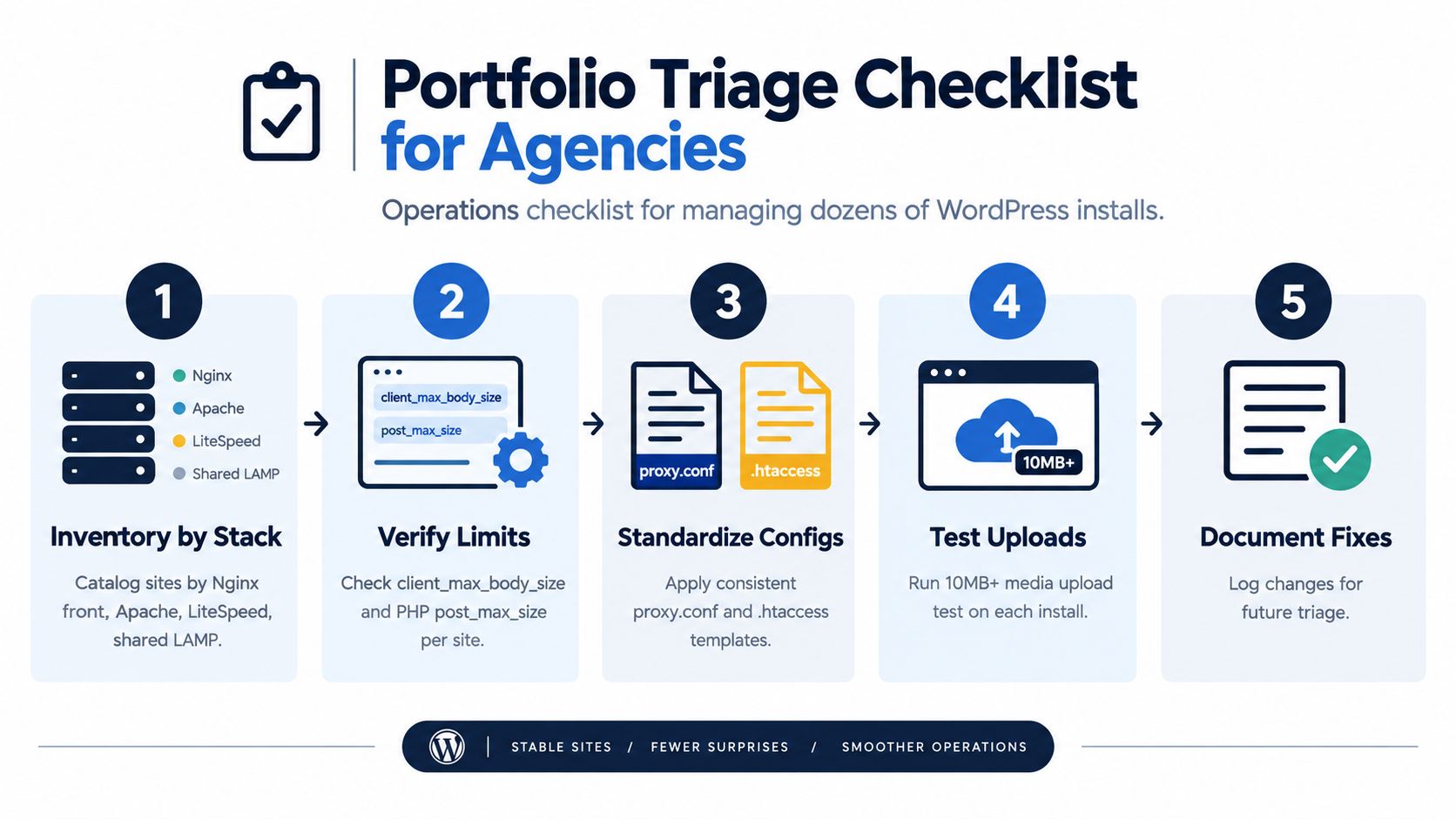
An agency managing multiple WordPress installs shouldn't troubleshoot every 413 as a unique mystery. Start by inventorying the stack for each site: Nginx front end, Apache behind a proxy, LiteSpeed, shared LAMP hosting, CDN, WAF, and load balancer. The same WordPress symptom can require different owners and configuration files.
Use a consistent decision path
Ask these questions in order:
- Does the public request reach the origin? Check the edge, WAF, load balancer, and reverse-proxy logs first.
- Does the active Nginx configuration allow the body? Use
nginx -T, not just the file you expect to be loaded. - Does Apache accept the body? Confirm
LimitRequestBodyand whether.htaccessoverrides are enabled. - Can PHP process it? Compare
upload_max_filesize,post_max_size, memory, and execution settings. - Does WordPress impose an application limit? Review multisite constants, filters, import workflows, and plugin behaviour.
Reproduce the problem with a controlled multipart request:
curl -v -F "[email protected]"
Run the test against the public route first. If you have an approved internal route, repeat it at the reverse proxy and origin. Don't use a production customer file for testing, and don't remove every limit to make the test pass.
| Environment | First configuration to inspect | Next location |
|---|---|---|
| Nginx reverse proxy | client_max_body_size in active Nginx output |
proxy.conf, upstream timeouts, edge policy |
| Apache with PHP-FPM | LimitRequestBody |
php.ini or .user.ini |
| Shared hosting | cPanel or Plesk PHP settings | Provider proxy and WAF policy |
| WordPress Multisite | Network upload setting | PHP and web-server limits |
| WooCommerce store | Import or checkout request path | Proxy, PHP, and application logs |
Standardize approved configuration templates, but keep the limit appropriate to each site's workflow. A photography portfolio may need a different policy from a commerce store that only accepts optimized product images. Log every change with the rejecting layer, directive, old value, new value, and verification result.
Finally, monitor for recurring 413 responses. Nginx error logs, load-balancer metrics, and Cloudflare analytics can reveal a pattern before an editor reports a failed upload. A sudden cluster around imports or page-builder saves points to payload growth and workflow design, not necessarily a missing upload setting.
WP Triage helps WordPress operators prioritize work across multiple sites by surfacing risk signals, ranking the most important fixes, and keeping portfolio maintenance consistent. If recurring 413 incidents are part of a wider multi-site support burden, visit WP Triage to see how its decision engine can help organize the next action for each installation.